To show the custom post type in a listing grid, you can create a Listings,
On Listings, you basically create how 1 of the custom post type will be displayed on the list, then that template will be repeated for all the post shown in the grid.
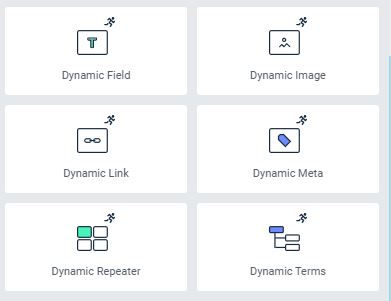
There’s mainly 7 types of widget that are provided by Jet Engine :
Dynamic Field : Getting meta data & Formatting we mainly use this widget
Dynamic Image : Same, but for Media only (not gallery)
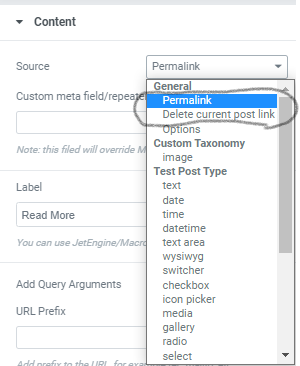
Dynamic Link : Like Dynamic Field, but the meta data are grabbed to be the url link. Useful for getting Taxonomy Permalink that dynamic Field cannot get.
Dynamic Meta : Can Only grab 3 kind of meta : Date, Author, & Comments
Dynamic Terms : Getting the list of taxonomy associated with this post
Dynamic Repeater* : A very manual (html) way to show repeater field, For visual way, we can create a custom Listings for that repeater and use Listing Grid instead of this widget.
Listing Grid : We will mostly use this widget to show our Listings in other pages. This is how we grab our created listings on a page.
*Note : We can create a listings for a repeater field, and put a listing grid for that repeater inside a listing of post that contain that repeater.
More on Other Methods to get Metadata
Other method to get Metadata
We can also grab the metadata using normal widget by using the dynamic tag,
Jet engine add several options in the elementor default dynamic tags, and each have it’s usage on grabbing the metadata.
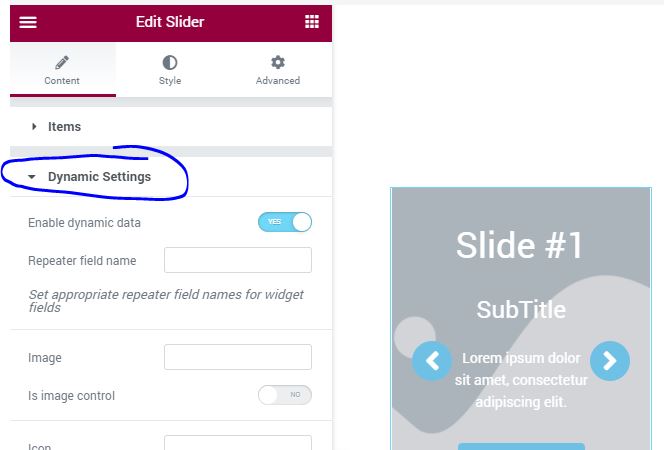
Dynamic Settings
Some Jet Elements widget also get added with Dynamic Settings, especially widget that can show multiple content such as Slider.
Dynamic Settings can show data from repeater field onto the widget.
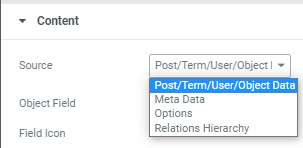
There’s 4 category of data to choose in Dynamic field :
Post/Term/User/Object Data – contain all Default metadata from wordpress (NO Term Id, User First & Last name & Bio info).
Meta Data – all of our custom created metadata from jet engine. Relations are also treated as Meta Data . When Selecting Relations, will return array of post ID that can be processed by Get post Title from ID / Related posts lists filter field output.
Options – All the metadata we create from options page
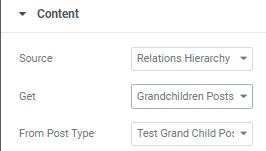
Relations Hierarchy – only to Show either Grandchildren / Grandparent relationfrom current post. This is due to meta data can only show the child / parent relation of the post (max 1 level)
Post/Term/User/Object Data
Meta Data
For meta data, you could also type in the meta data slug instead of selecting it from the field box.
Options
Relations Hierarchy
Filter Field output & Customize field output?
In Dynamic Field, there’s 2 more toggle to be aware of :
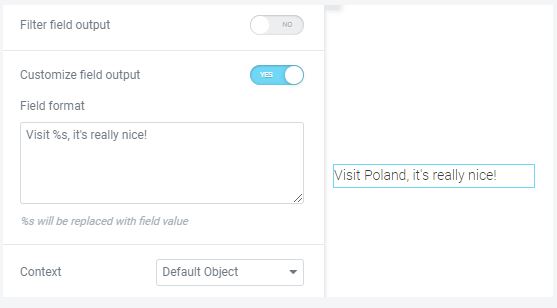
Customize field output : simple formatter to add the before & after text after the data. the %s will be replaced with the data content .
Filter Field Output : Loads of predefined function to process the data before displaying it on the screen. The definition of each function can be seen here or here’s the excerpt of what each callback do :
Use the Format date callback to show the date pulled from the database using Date or Time meta fields. In the Format field you can set the date’s format;
Format date (localized) is the same as the previous but shows the date that is already localized to the language of the website;
Format number. If you want to display the data from the Number-type meta field, you can set its format using this callback. You can choose how the Decimal point and Thousands separator will look like and set how many numbers will be shown after the decimal point;
Get post/page title. If in the Object Field select you have chosen the Post ID option, this callback will display the title of the post or page;
Get post/page link (only URL). If you will choose one of the ID options in the Object Field drop-down menu, this callback will display the post’s URL;
Get post/page link (linked title). This callback will also show the posts URL but in the form of a title with a link;
Get term link. This option can be used only if you selected the term or taxonomy ID in the Meta Field select. In this case, it will display the term’s URL;
Embed URL. If you have a meta field that will contain a URL and you want to embed it to the page, use this callback. For example, it will work if you want to embed a video from YouTube;
Make clickable. If you have a field with a URL in it, normally it will be shown as plain text. And this callback will make it a clickable link;
Embed icon from Iconpicker. This callback is for the Iconpicker-type field and allows you to show the icon, not its ID;
Multiple select field values. This one is used for the Select-type fields. It will allow you to showcase several selected options. Don’t forget to specify the Delimiter afterward;
Checkbox field values. If you want to display the values, chosen in a Checkbox-type field, this callback will help you display them in a line, separated by Delimiter;
Checked values list. This callback is also used with the Checkbox-type meta field but shows the data as a list. You can choose the number of columns and separator between them;
Switcher field values. With the help of this callback you can display the values of the Switcher-type meta field;
ACF Checkbox field values. This one allows you to display the values of the Checkbox-type meta fields created by ACF plugin functionality;
Get post titles from IDs. It can be used with the Posts-type meta field. When enabled, this callback displays the titles of the posts you have chosen in the field;
Related posts list. This callback also works with the Posts-type meta field but displays the titles of the posts in a list instead of a row;
Field values count. Another callback for Posts-type meta field. It shows the number of posts you have chosen in the field;
Get Image by ID. This callback option displays the image from the database instead of its number value when using the Media meta field;
Do shortcodes. If in some of the fields you added a shortcode, normally it will be displayed as plain text. And when this callback is enabled, the shortcode in the field will be processed and shown correctly;
Human readable time difference. This callback works with Date-type meta fields. It shows the difference between the date you put into the meta field and the current date. The difference is displayed in days;
Add paragraph tabs (wpautop). If you have chosen the Textarea-type meta field in the Meta Field select – this callback will add paragraphs to the text;
Zeroise (add leading zeroes). When this callback is enabled, it adds zeroes before the value of the Number-type meta field;
Get child element from object/array. This callback works with Checkbox and Select-type meta fields. It shows the value of the option, chosen in the checkbox of select. For example, if you ticked the “2” option of the checkbox and have chosen the “2” option for the callback – it will display the “true” value;
Get labels by glossary data. It allows you to display the labels of the glossary items list in the listing. This callback works with the Radio, Select, and Checkbox meta fields;
Images Gallery Grid callback option allows you to display gallery added using Gallery-type meta field. This option appears in the list after you enable the Grid Gallery for Dynamic Field widget toggle in JetEngine > JetEngine Dashboard > Modules tab;
Images Gallery Slider. This one is used whenever you need to display the images added using the Gallery meta field in a slider. This option appears in the list after you enable the Slider Gallery for Dynamic Field widget toggle in JetEngine > JetEngine Dashboard > Modules tab;
QR Code. Enable this callback, set the size, and it will convert the value of the field into a QR code.
Show All
Is Dynamic Field enough for everything?
For most part, yes, but there’s some data that Dynamic field can’t get, for example : Image (need dynamic image)
Other than that, Dynamic Link provide 2 things that can’t be grabbed by Dynamic field :
Term ID & permallink. (there’s filter field output to get Term link from Term id, but we can’t get Term ID in Dynamic Field. Hence : useless).
Delete Current post link (Don’t know what it do yet)
Dynamic Repeater Basic
For basic repeater field, you can use Dynamic repeater widget, but this is very manual :
select the repeater slug in the source
in the Item format, put any html script you want and put any %repeater-field-slug% in it, then it will be replaced with the value of the meta data inside that repeater slug.