Normally You set design of your custom post type by :
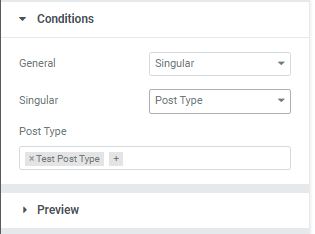
setting up a single pagetemplate in Jet Theme Core , so that the template will be used on the selected Custom post type. The advantage is that you can use 1 template across multiple post, and the data will be grabbed dynamically
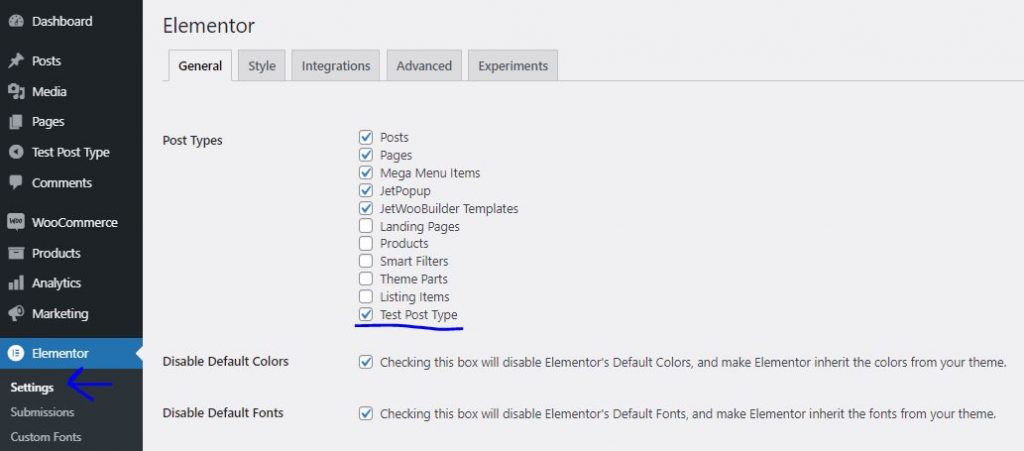
2. Less common options if you need more granular control and have each custom post type displayed differently, you can enable Elementor for your CPT in Elementor > Settings > tick your CPT , then you can use Elementor and customize each post in your CPT differently.
Note* : If you use both Elementor in your CPT & use the Jet Theme core single page template condition, the single page template will be used instead.
As of now, Jet Theme Core Condition provide limited template condition (as shown in the example). e.g : Cannot exclude a certain post. If you want to make more granular template condition such as : Use this template in this Custom Post Type Excluding this post only, you need to use elementor’s theme builder
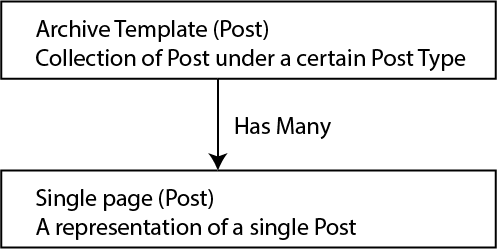
Display Location (Post)
Each post in the CPT can be designed individually (Single page post), but there will be 1 more page that you can customize on each CPT called the Archive page.
Archive page is just a list of all of the post in that CPT in 1 place.
Has Archieve
Enabling Has Archieve on Custom post type will enable archieve page for that custom post type. Archieve page can be accessed through the slug of the post type, e.g :
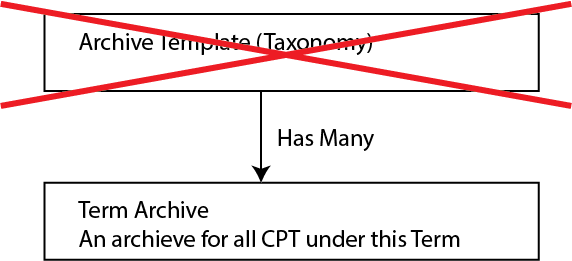
in Taxonomy, there is No Archive page that contain all the term in taxonomy.
Instead, the Archive page will be created for Each term inside the Taxonomy. the archive should ideally show all post with that term.
To edit the archieve, use Jet Theme Core’s Theme Builder function. and inside, put the Listing Grid of the CPT under that term with “Use as Archive Template” Toggle on
Learn more about Listings on next section
Display Location (User & Date Archive)
User also don’t have their own single page, we need to activate Profile builder in order to do that. User only have archive which list all the post created by that user. This is similar with Date Archive that contains all post on certain date.
Jet Theme Core don’t have ways to specify a template active conditions to Author Archive / Date Archive, if you need to override the template for those archive, you need to rely on Elementor pro Theme Builder, since elementor has better control on their active conditions
Elementor active condition :
Jet Theme core active condition :
Display Location (Search Archive)
There’s also 1 more Archive called Search Results Archive, it’s a page we go to when using Search feature in the website. There’s only 1 search template and we can’t easily set different search archive template based on what we search.
Displaying a List of Posts on a page (Listing & Listing Grid)
An Important concept of Dynamic data is : On a post page, you can show a list of other post and show links to that individual post. e.g :
List of product in woocommerce shop, each linking to the individual product page
List of Housing in property website, each linking to the indivitual property page
List of related property inside a single property page
List of Agent associated to a specific Service
List of related product to the current visible product on the page
List of Events associated to the current event Type on the page
List of Tour options associated with the Country Post type
And Many Many more…
In order to show that in the page, we have to create :
Listings : A single template that will be used repeatedly for all the post in the post type selected in the listing, and will be displayed by :
Listing Grid Widget : a widget provided by Jet Engine, to show a listings that we create on a page, with the ability to filter & Sort it.