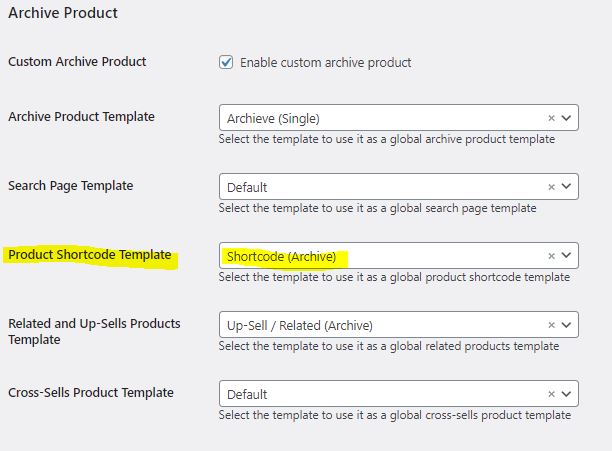
Create an Archive page Template in Crocoblock > Woo Page Builder, and set it to the Product Shortcode Template in WooCommerce > Settings > Jet Woo Builder
The [products] shortcode is one of our most robust shortcodes, which can replace various other strings used in earlier versions of WooCommerce.
The [products] shortcode allows you to display products by post ID, SKU, categories, attributes, with support for pagination, random sorting, and product tags, replacing the need for multiples shortcodes such as [featured_products], [sale_products], [best_selling_products], [recent_products], [product_attribute], and [top_rated_products], which are needed in versions of WooCommerce below 3.2. Review the examples below.
Available Product Attributes
The following attributes are available to use in conjunction with the [products] shortcode. They have been split into sections for primary function for ease of navigation, with examples below.
Display Product Attributes
limit – The number of products to display. Defaults to and -1 (display all) when listing products, and -1 (display all) for categories.
columns – The number of columns to display. Defaults to 4.
paginate – Toggles pagination on. Use in conjunction with limit. Defaults to false set to true to paginate .
orderby – Sorts the products displayed by the entered option. One or more options can be passed by adding both slugs with a space between them. Available options are:
date – The date the product was published.
id – The post ID of the product.
menu_order – The Menu Order, if set (lower numbers display first).
popularity – The number of purchases.
rand – Randomly order the products on page load (may not work with sites that use caching, as it could save a specific order).
rating – The average product rating.
title – The product title. This is the default orderby mode.
skus – Comma-separated list of product SKUs.
category – Comma-separated list of category slugs.
tag – Comma-separated list of tag slugs.
order – States whether the product order is ascending (ASC) or descending (DESC), using the method set in orderby. Defaults to ASC.
class – Adds an HTML wrapper class so you can modify the specific output with custom CSS.
on_sale – Retrieve on sale products. Not to be used in conjunction with best_sellingor top_rated.
best_selling – Retrieve the best selling products. Not to be used in conjunction with on_sale or top_rated.
top_rated – Retrieve top-rated products. Not to be used in conjunction with on_saleor best_selling.
Content Product Attributes
attribute – Retrieves products using the specified attribute slug.
terms – Comma-separated list of attribute terms to be used with attribute.
terms_operator – Operator to compare attribute terms. Available options are:
AND – Will display products from all of the chosen attributes.
IN – Will display products with the chosen attribute. This is the default terms_operator value.
NOT IN – Will display products that are not in the chosen attributes.
tag_operator – Operator to compare tags. Available options are:
AND – Will display products from all of the chosen tags.
IN – Will display products with the chosen tags. This is the default tag_operator value.
NOT IN – Will display products that are not in the chosen tags.
visibility – Will display products based on the selected visibility. Available options are:
visible – Products visible on shop and search results. This is the default visibility option.
catalog – Products visible on the shop only, but not search results.
search – Products visible in search results only, but not on the shop.
hidden – Products that are hidden from both shop and search, accessible only by direct URL.
featured – Products that are marked as Featured Products.
category – Retrieves products using the specified category slug.
tag – Retrieves products using the specified tag slug.
cat_operator – Operator to compare category terms. Available options are:
AND – Will display products that belong in all of the chosen categories.
IN – Will display products within the chosen category. This is the default cat_operator value.
NOT IN – Will display products that are not in the chosen category.
ids – Will display products based on a comma-separated list of Post IDs.
skus – Will display products based on a comma-separated list of SKUs.
If the product is not showing, make sure it is not set to “Hidden” in the “Catalog Visibility”.
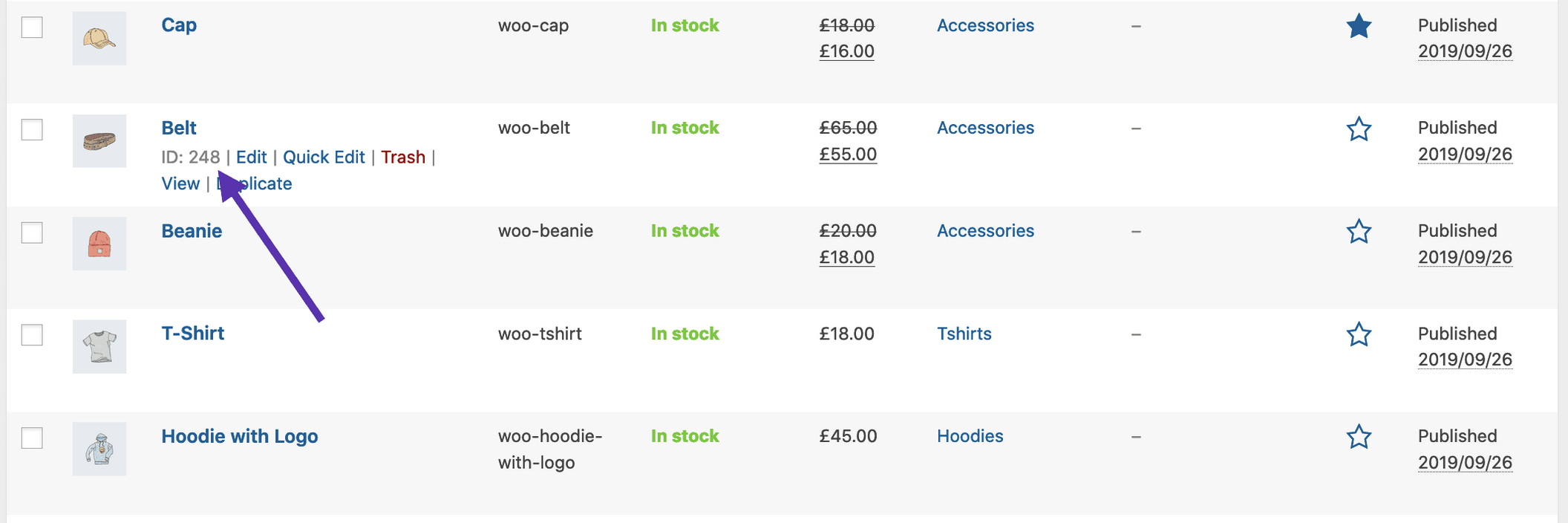
To find the Product ID, go to the Products screen, hover over the product and the ID appears as shown below.
Special Product Attributes
These attributes cannot be used with the “Content Attributes” listed above, as they will likely cause a conflict and not display. You should only use one of the following special attributes.
best_selling – Will display your best selling products. Must be set to true.
on_sale – Will display your on-sale products. Must be set to true.
Examples of Product Scenarios
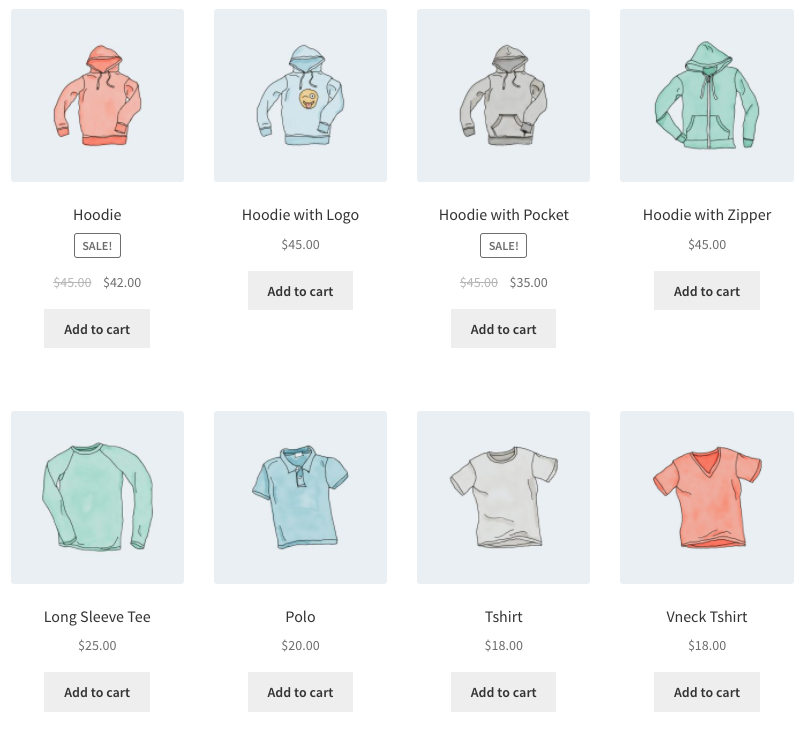
In the following scenarios, we’ll use an example clothing store.
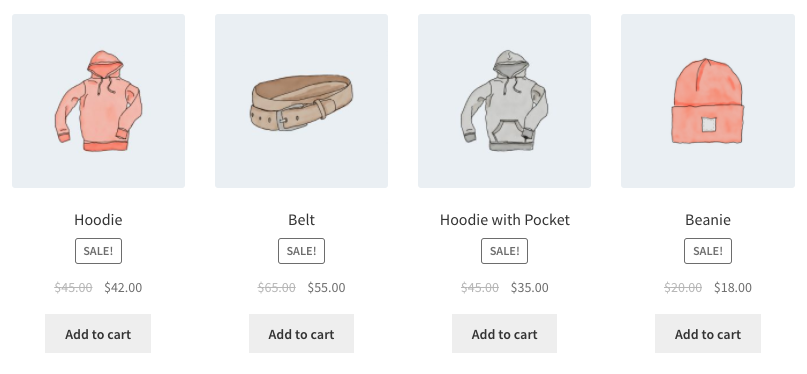
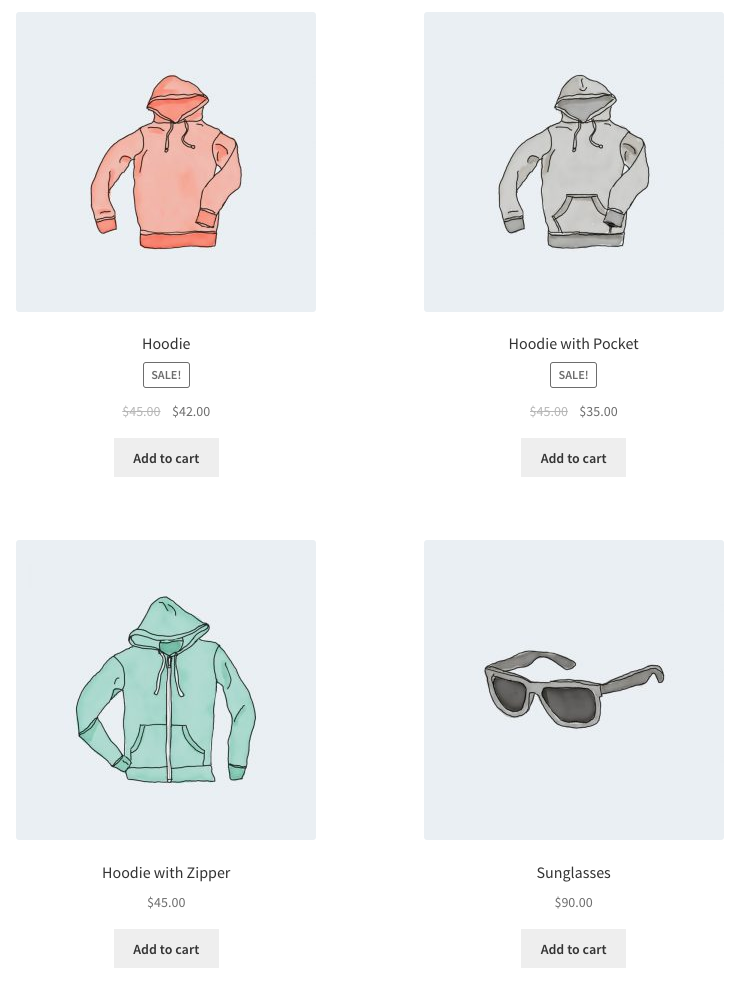
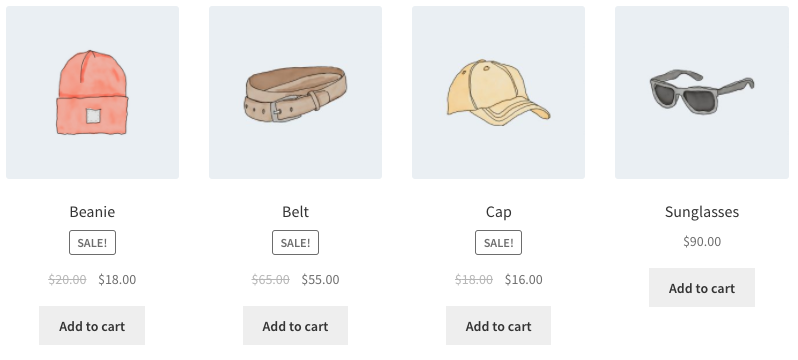
This shortcode explicity states four products with four columns (which will be one row), showing the most popular on-sale items. It also adds a CSS class quick-sale, which I can modify in my theme.
Scenario 2 – Featured Products
I want to display my featured products, two per row, with a maximum of four items.
This shortcode says up to four products will load in two columns, and that they must be featured. Although not explicitly stated, it uses the defaults such as sorting by title (A to Z).
Scenario 3 – Best Selling Products
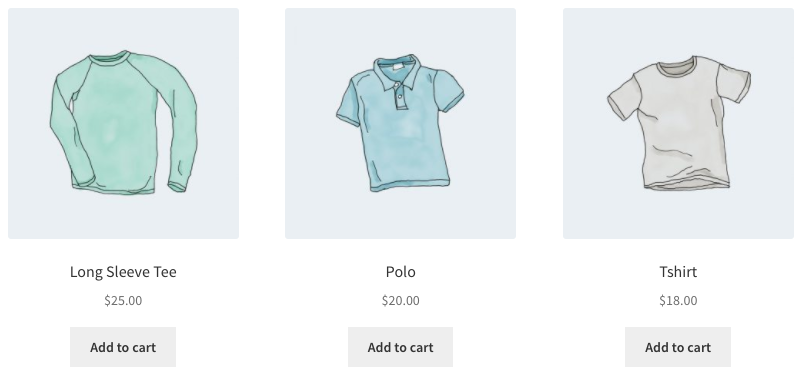
I want to display my three top best selling products in one row.
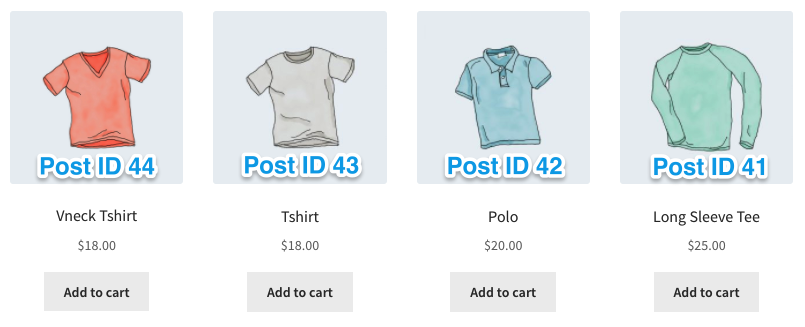
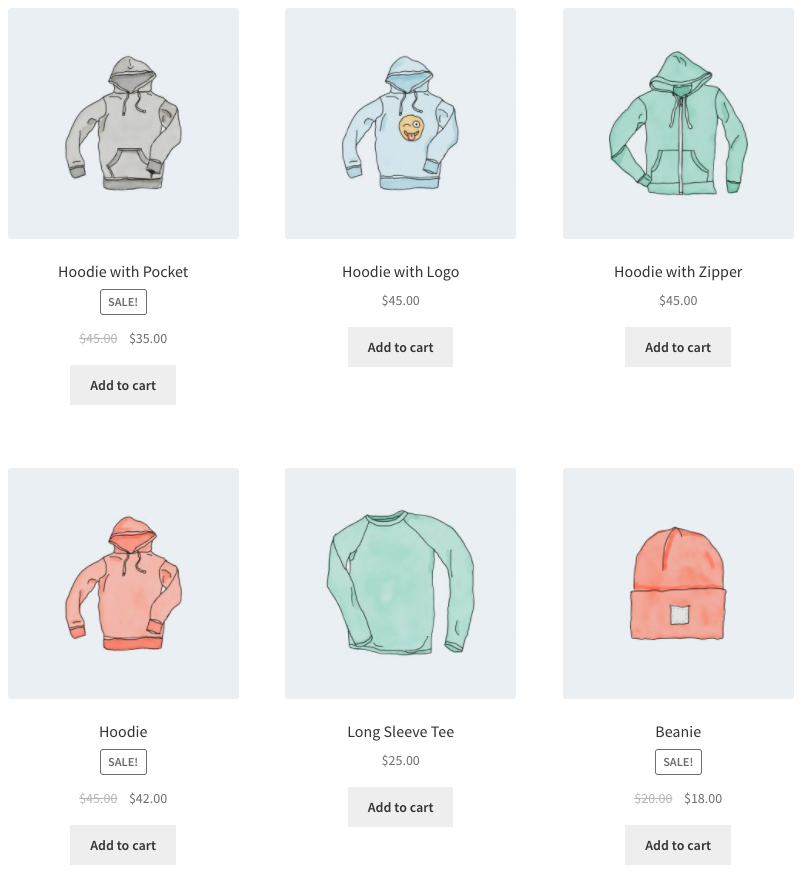
I want to display the newest products first – four products across one row. To accomplish this, we’ll use the Post ID (which is generated when the product page is created), along with the order and orderby command. Since you can’t see the Post ID from the frontend, the ID#s have been superimposed over the images.
Note that even though the limit is set to 8, there are only four products that fit that criteria, so four products are displayed.
Scenario 6 – Attribute Display
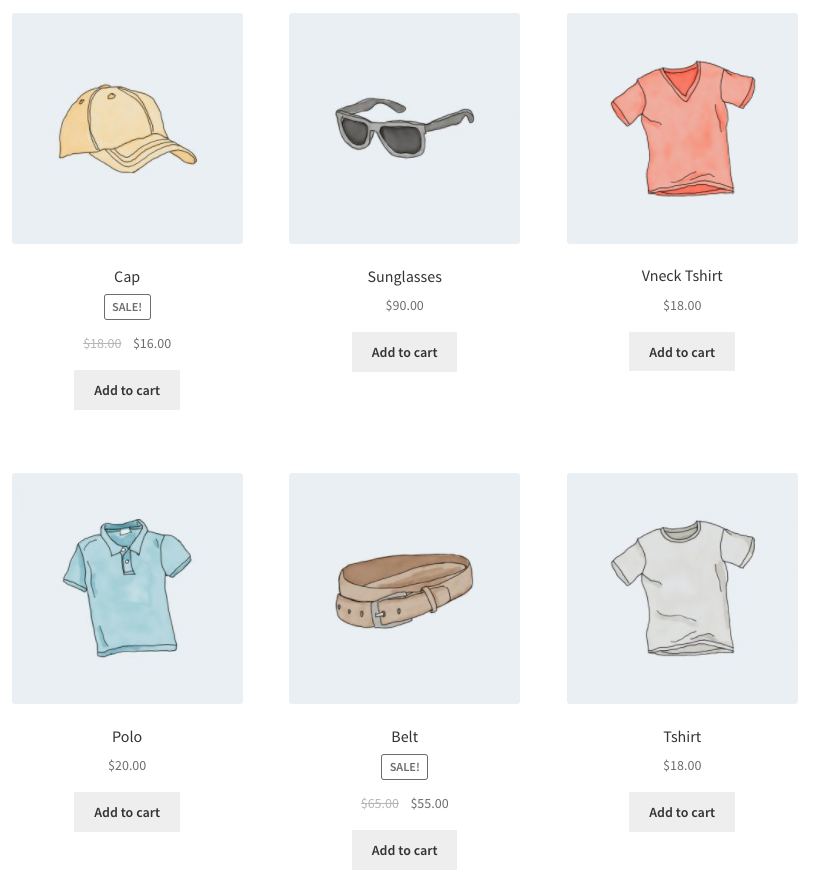
Each of the clothing items has an attribute, either “Spring/Summer” or “Fall/Winter” depending on the appropriate season, with some accessories having both since they can be worn all year. In this example, I want three products per row, displaying all of the “Spring/Summer” items. That attribute slug is season, and the attributes are warm and cold. I also want them sorted from the newest products to the oldest.
Note that by using NOT IN, I exclude products that are both in “Spring/Summer” and “Fall/Winter”. If I wanted to show all cold-weather appropriate gear including these shared accessories, I would change the term from warm to cold.