Shop - Setting Archive Item for Product Loop
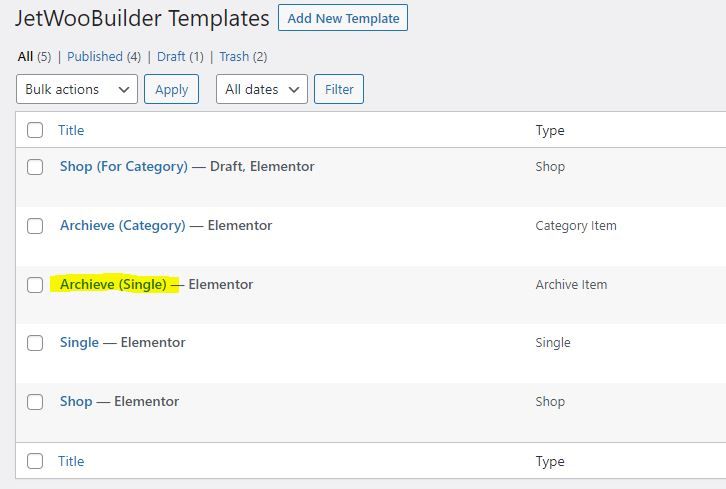
The format of product listed in product loop is controlled by template selected in the widget. It pulls from Jet Woo Builder Template – Archive Item.
1. Create Archieve Item in Crocoblock > Woo Page Builder
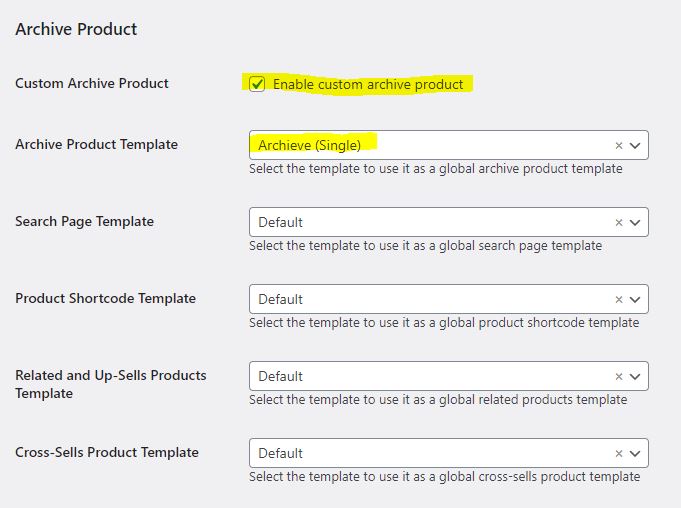
2. Then set it in The WooCommerce > Settings > Jet Woo Builder
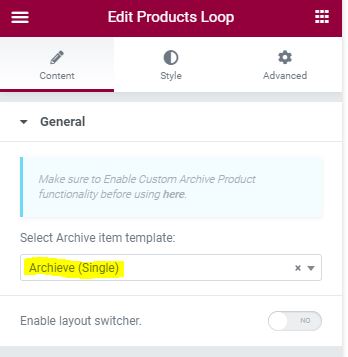
3. Set it in the Products Loop widget Content.
Product Page Title
Hoodies
Product Loop
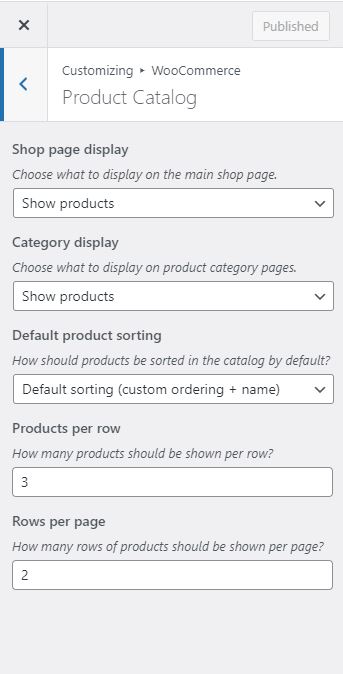
On Product Loops, the number of products listed is controlled in Appearance > Customize > Woocommerce > Product Catalog
Instead the custom made Product Loop, you can also use the preset in Product List / Product Grid widget and set it to be the view in your Shop page.
Below is Jet Smart Filter, not included in the jet Woo Builder, but are often used together.
-
Sale Badge :
Title :
Hoodie with Zipper
Thumbnail :
Categories :
Tags :
Excerpt :
This is a simple product.SKU :
woo-hoodie-with-zipperAdd To Cart :
Stock Status :
Price :
Rp45.00Rating :
-
Sale Badge :
Title :
Hoodie with Logo
Thumbnail :
Categories :
Tags :
Excerpt :
This is a simple product.SKU :
woo-hoodie-with-logoAdd To Cart :
Stock Status :
Price :
Rp45.00Rating :
-
Sale Badge :
Sale!Title :
Hoodie
Thumbnail :
Categories :
Tags :
Excerpt :
This is a variable product.SKU :
woo-hoodieAdd To Cart :
Stock Status :
Price :
Rp42.00 – Rp45.00Rating :
Products Ordering
Products Navigation
A Very simple Pagination widget, can only show Next / Previous (very similar to pagination but without the page)
Products Pagination
Upgrade from Products Navigation, but if you use jet smart filter, use the jet smart filter’s pagination widget instead because it can target reload type (Ajax, page reload, Mixed).
Mixed is Ajax, but the url is changed so no actual page reload.
Products Result count
For now it can only be accurate if using page reload method because this widget can’t reload on AJAX.
But later maybe we can use Jet Engine’s Query builder to make it possible
Showing all 3 results